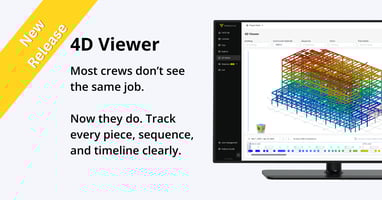

UPDATE: Versatile’s Track feature is now 4D Viewer. Learn more here. Most reporting is limited...
Your BOL Scans Now Show Up on the Steel
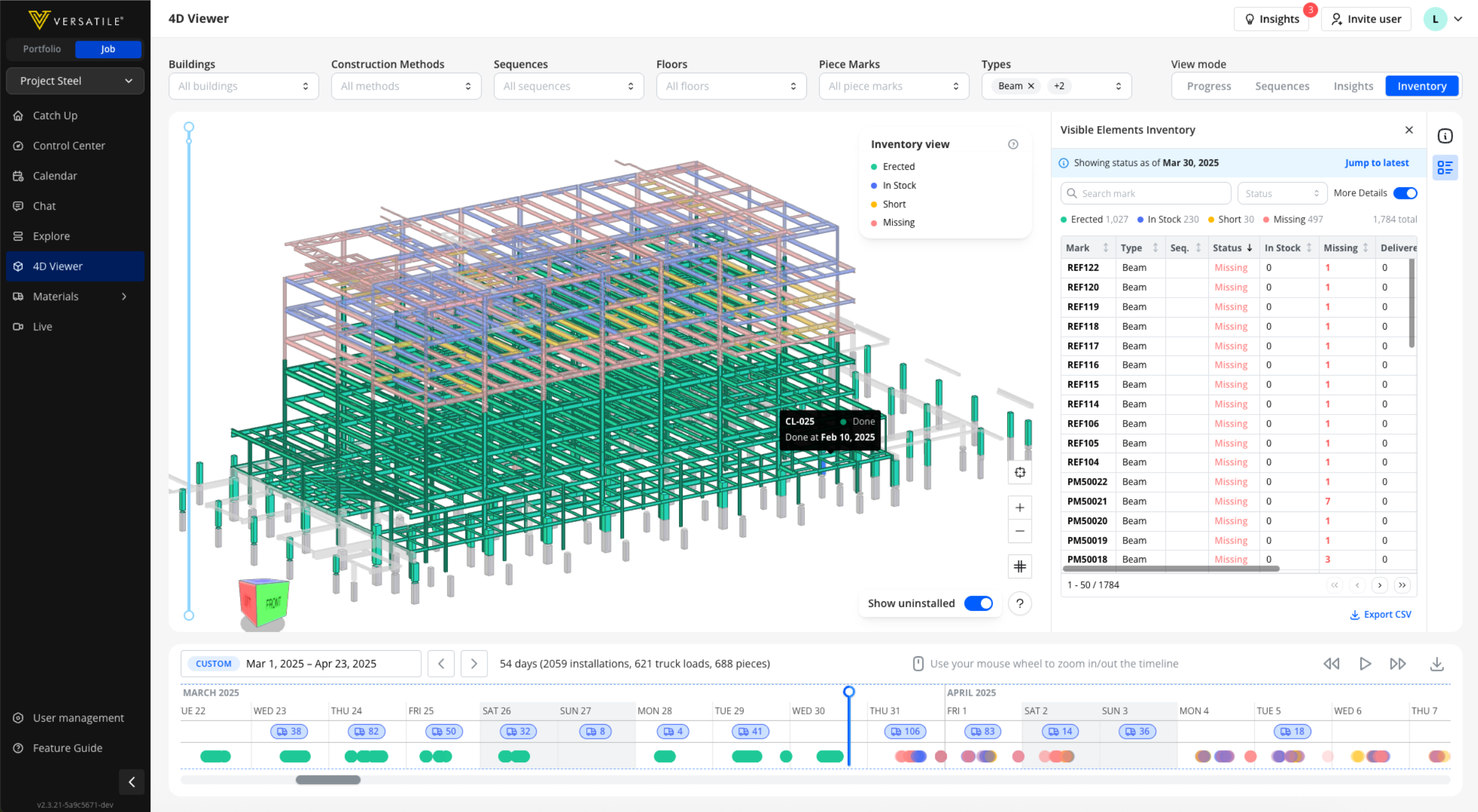
Starting today, every BOL your crew scans paints the 4D model. Open the new Inventory Mode and you'll see exactly which pieces are on the ground, which are short, and which haven't shown up at all.
No more cross-referencing spreadsheets. No more manually recoloring models. The data your field team is already capturing now does the work for you.
What Inventory Mode Does
Inventory Mode adds a new color-coding layer to the 4D Viewer. Every piece in the model gets one of four statuses based on your scanned BOL data:
Erected — Installed. Done.
In Stock — All pieces for this mark have been delivered. Ready to hang.
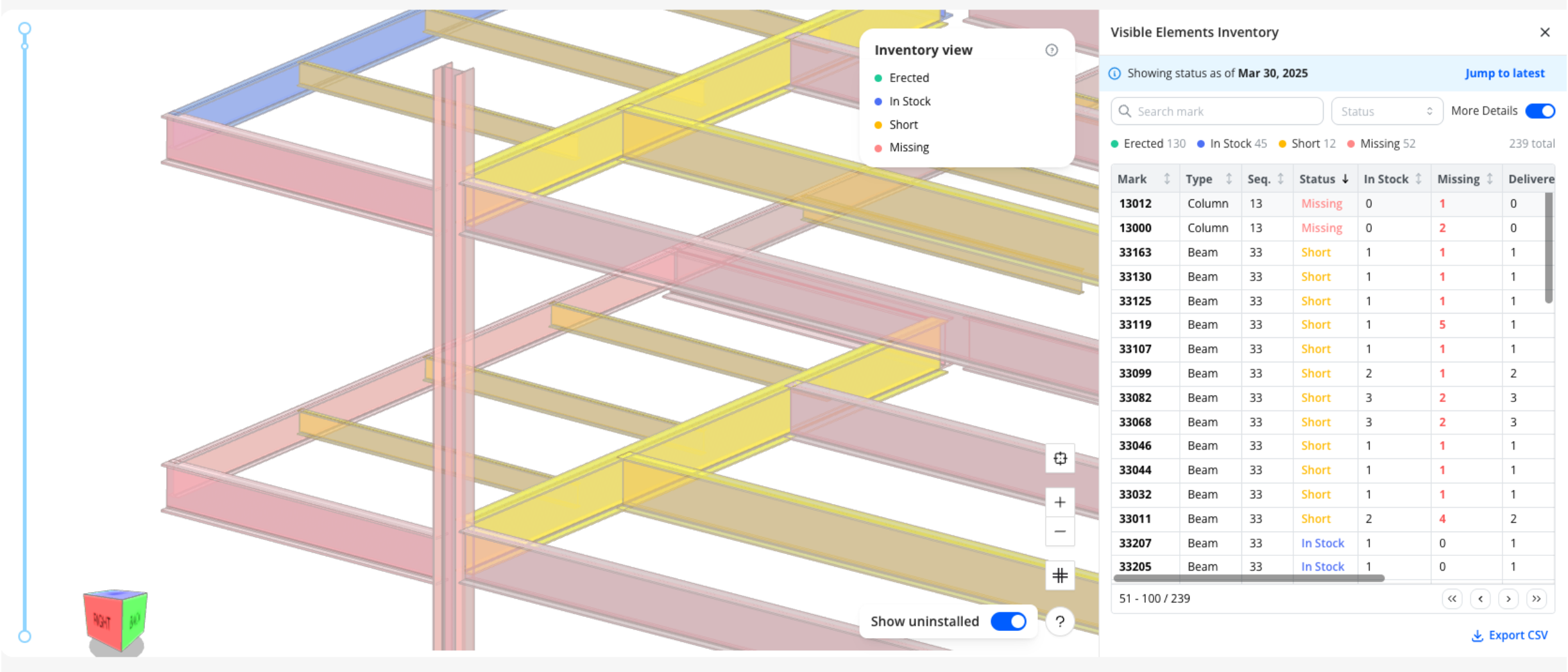
Short — Some pieces delivered, but not enough for what's left in the model. You'll need more before you can finish.
Missing — No delivery record for the remaining pieces of this mark. Nothing on the ground for what's left to erect.
The statuses are based on what's been scanned. Beams, columns, and braces — the piece types that match reliably to your BIM.
What You Can Do With It
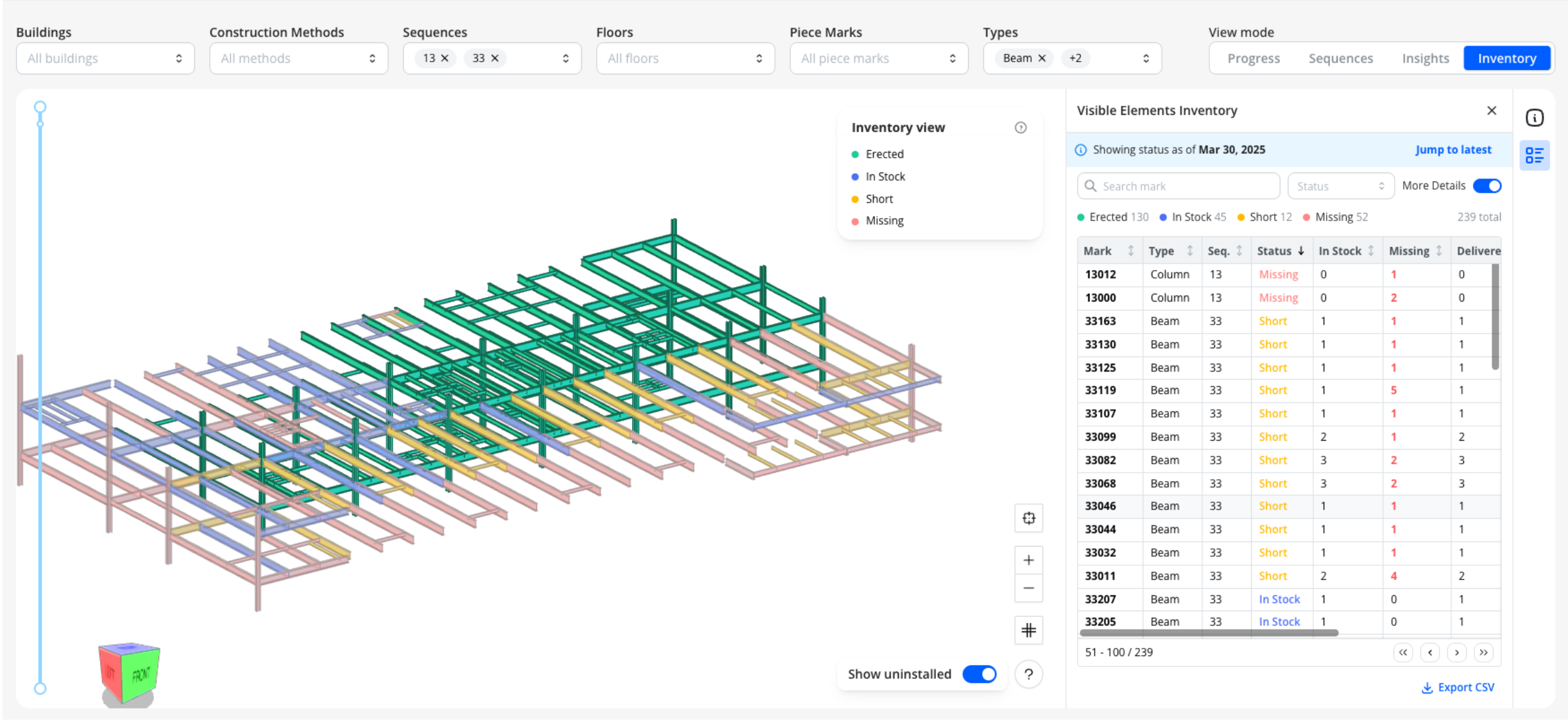
Spot shortages before they stop your crew. Filter by sequence and see at a glance whether you have enough steel for the next phase. If a sequence is full of red and yellow, you know to get on the phone with your fabricator before crews are standing around.
Send evidence, not emails. When a fabricator disputes what was delivered, take a screenshot of the model. Missing pieces are painted red. Short marks are yellow. One image replaces a week of back-and-forth calls.
Go back in time. Scrub the timeline to any past date and see what inventory looked like then. The model and the piece table both update. This is how you document delays after the fact — show exactly what was missing and when.
Export to CSV. The Visible Elements table lists every piece mark with its status, count, and sequence. Search it, sort it, and export it to share with your fabricator or include in a change order.
See deliveries on the timeline. Truck icons appear on the timeline at the dates BOLs were scanned, with count badges showing how many pieces arrived. Scrub over a delivery and watch the model update.
How It Works
- Your field crew scans BOLs on delivery using the Versatile mobile app (same as before — no new workflow).
- Our team validates the scan data against your BIM.
- Open the 4D Viewer, switch to Inventory Mode, and the model is painted by delivery status.
- Click any piece to highlight all other pieces with the same mark. The Visible Elements panel shows the detail.
Try It Now
If you're already using Material Tracking, open your 4D Viewer and switch to Inventory Mode. If you're not using Material Tracking yet, get started here.